Watch IPTV on Windows PC: Install & Stream in 5 Minutes
August 26, 2026 · 8 min read
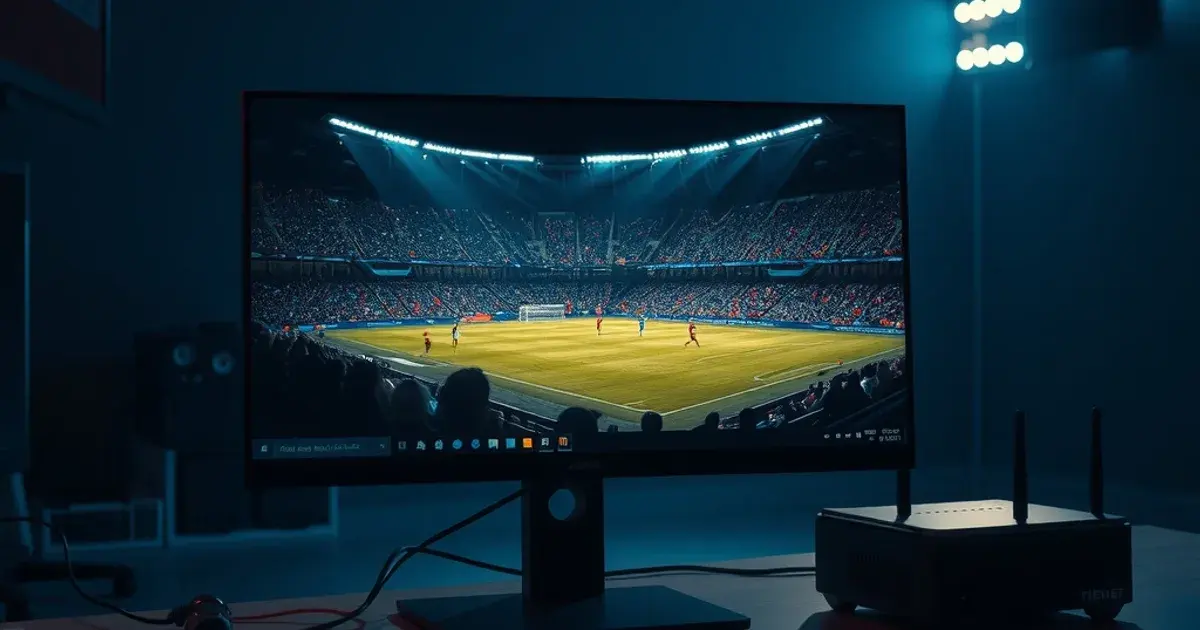
La Liga kicked off on August 15, the Premier League followed on August 22, and Bundesliga matchday one lands August 28 — which means right now is when most cord-cutters actually go looking for a reliable way to watch. Most of the guides that show up point to a phone, a Fire Stick, or an Android box. Almost none of them mention the device that's already sitting on your desk: your Windows PC.
That's a gap worth closing, because a PC has one advantage that no stick, phone, or tablet can match without extra hardware — a wired ethernet port. Plug in a cable instead of relying on WiFi, and you remove the single biggest cause of buffering during a live match: an unstable wireless signal fighting for bandwidth with every other device in the house.
This guide walks through the full setup on Windows — from checking your hardware is up to the job, to picking the right app, to loading your playlist and locking in a config built for sport, not just casual viewing.
Why Windows PC for IPTV: Flexibility, Ethernet Reliability & No New Hardware Needed
The case for a Windows PC starts with what you don't have to buy. If you already own a laptop or desktop, there's no streaming stick, no Android box, no new remote to learn — just software you install in a few minutes.
The bigger reason, though, is the network connection. Phones and streaming sticks are almost always on WiFi, and WiFi is a shared, variable-quality medium: walls, microwaves, neighboring networks, and other devices on your own network all compete for the same airwaves. A desktop PC near your router (or connected through a powerline adapter) can run a direct ethernet cable to the router, which gives you a stable, dedicated connection with none of that interference. For more on why this matters specifically during live sport, see /blog/ethernet-vs-wifi-iptv-sports-streaming.
A PC also gives you more control than a locked-down TV app: you can switch players, tweak buffer settings, run a second monitor for stats or a second match, and troubleshoot with proper error logs instead of a black box.
Not sure which app or playlist format fits your PC setup?
System Requirements: RAM, CPU & GPU for HD vs 4K Playback
IPTV playback is lighter than gaming, but it's not free. For standard HD streams, a dual-core CPU from the last decade, 4GB of RAM, and any GPU with basic hardware video decoding will handle it comfortably — this covers the vast majority of laptops and desktops still in use today.
4K streams are a different story. They demand hardware-accelerated decoding (H.264 or, better, H.265/HEVC support) built into your GPU, plus at least 8GB of RAM if you're multitasking with a browser or other apps open. Most Intel CPUs from the last several generations and any recent dedicated GPU handle this fine — the failure point is usually an older integrated graphics chip trying to software-decode 4K, which spikes CPU usage and causes exactly the kind of stutter that looks like a network problem but isn't.
If you're unsure which tier your machine falls into, open Task Manager while a stream plays: if CPU usage sits below 40-50%, you're fine. If it spikes toward 90-100% during playback, drop to HD or switch to a player with better hardware decoding support.
5 Best IPTV Apps for Windows (VLC vs IPTV Smarters vs IPTV One: Quick Comparison)
VLC Media Player is the simplest entry point — free, open-source, and already familiar to most Windows users. It plays any M3U playlist or single stream URL with zero setup beyond opening a network stream, but it has no EPG (program guide), no channel favorites list, and no built-in catch-up/VOD browsing. It's a good first test to confirm a playlist works, not a long-term daily driver.
IPTV Smarters is the step up most beginners land on. It supports both M3U and Xtream Codes logins, shows a proper EPG with channel logos, organizes VOD and series into browsable libraries, and has a genuinely beginner-friendly interface. This is the app most first-time Windows IPTV users should start with.
IPTV One and similar advanced players (TiviMate-style clients, OTT Navigator) add finer control: multi-screen layouts, custom buffer sizing, catch-up TV timelines, and more granular EPG sources. They reward users who already know their playlist format and want to fine-tune performance rather than just get channels on screen.
Kodi sits at the far end — not an IPTV app by itself, but a full media center that becomes one via the PVR IPTV Simple Client add-on. It's the most flexible and the most work to configure, and it's overkill unless you're already using Kodi for other media. For most PC users watching live sport, IPTV Smarters or IPTV One is the right level of complexity.
Step-by-Step: Download, Install & Launch Your Chosen App
Download your chosen app only from its official source — the Microsoft Store for IPTV Smarters Pro, VideoLAN's own site for VLC, or the developer's listed site for IPTV One. Avoid random third-party download mirrors; they're a common source of bundled adware on Windows.
Run the installer, accept the standard permissions (network access is required — that's expected for any streaming app), and launch it once to confirm it opens cleanly before you add anything. On first launch, most apps will prompt you to either paste an M3U URL or enter Xtream Codes login details — that's the next step.
If you're new to IPTV terminology altogether — trial periods, what a provider actually is, how activation works — /blog/iptv-free-trial-explained covers the basics before you commit to a full subscription.
Add Your M3U Playlist or Xtream Codes in 2 Minutes
Your IPTV provider gives you access one of two ways: an M3U playlist URL (a single link pointing to a channel list file) or Xtream Codes login credentials (a server address, username, and password that the app uses to pull channels, EPG, and VOD dynamically).
In IPTV Smarters or IPTV One, go to the 'Add User' or 'Login' screen, choose the matching option, and paste in what your provider gave you exactly as sent — a single typo in the server URL is the most common reason a fresh install shows zero channels. In VLC, use Media > Open Network Stream and paste the M3U URL directly; VLC doesn't support Xtream Codes login natively.
For a deeper comparison of the two formats — including which one plays more reliably on Fire Stick if you're managing multiple devices — see /blog/xtream-codes-vs-m3u-firestick-guide. The same logic applies on Windows: Xtream Codes generally gives you a richer EPG and VOD experience, while M3U is simpler and more universally compatible.
Configure Video Quality, Frame Rate & Buffer Settings for Sports
Live sport punishes bad settings more than any other content type — a movie buffering for two seconds is an annoyance, a buffer during a goal is a genuine loss. Start by matching stream resolution to what your connection and hardware can actually sustain rather than always picking the highest option by default; dropping from 4K to a stable 1080p feed beats a 4K stream that stutters every few minutes.
Most advanced players (IPTV One, OTT Navigator-style apps) expose a buffer size setting, usually in seconds or megabytes. Increasing it slightly — even by a few seconds — smooths out short network hiccups at the cost of a small delay before playback starts. For live matches where being a few seconds behind doesn't matter, err toward a larger buffer.
If your provider offers a 50fps or 60fps sports feed alongside a standard one, use it for fast-paced content like football — the difference in motion smoothness is noticeable on a PC monitor in a way it often isn't on a phone screen. For a broader checklist of what actually causes buffering during big matches and how to fix each cause, /blog/stop-buffering-during-big-matches walks through it root-cause by root-cause.
Connect Ethernet: The One-Step Buffering Fix
If you take one action item from this guide, make it this one. Plug an ethernet cable from your PC directly into your router (or into a powerline/MoCA adapter if the router isn't nearby). This single change removes WiFi interference, signal drop-off with distance, and contention with every other device streaming, gaming, or downloading on the same wireless band — the three most common causes of mid-match buffering.
On Windows, once the cable is connected, open Settings > Network & Internet and confirm 'Ethernet' shows as connected — Windows will typically prioritize the wired connection automatically over WiFi. No further configuration is usually needed.
This is exactly why a desktop PC has a real edge for big matches over a phone or a WiFi-only streaming stick: it's the one common household device where a wired connection is a five-minute setup rather than an extra purchase. Combined with a properly configured app, it's the most reliable way to watch a full 90 minutes without a single freeze.
Get your PC wired up and ready before the next big match kicks off.
Troubleshooting: App Won't Launch, No Channels, Black Screen
App won't launch or crashes on open: reinstall from the official source, and check Windows Defender or your antivirus hasn't quarantined a file — this happens occasionally with less mainstream players and is usually a false positive, but only restore it if you trust the download source.
No channels appear after adding a playlist: double-check the M3U URL or Xtream Codes details for typos, confirm your subscription is currently active, and try reloading the playlist — some providers refresh channel lists on a schedule and a stale cache in the app can show an empty list until it's forced to refetch.
Black screen with audio only, or vice versa: this is almost always a codec/hardware decoding mismatch. Try switching the app's decoding mode from hardware to software (or the reverse) in its playback settings, or test the same stream in VLC to isolate whether the issue is the app or the stream itself.
Stream loads but keeps buffering despite a wired connection: at that point the bottleneck usually isn't your PC or your network — it's the source. If a specific channel buffers while others play fine, that points to the provider's server load rather than your setup. For a full picture of what reliable sports streaming actually requires end-to-end, /blog/best-iptv-for-sports-2026-tested-reliable and /blog/premier-league-iptv-2026-27-setup cover the provider side of the equation.
Frequently asked questions
Can I run IPTV on Windows without installing any app, just a browser?
Some Xtream Codes panels offer a web player, but browser playback is generally less stable for live sports than a dedicated app — it lacks proper buffer control and EPG support. A lightweight app like VLC or IPTV Smarters is a better foundation for anything beyond a quick test.
Do I need a powerful gaming PC to stream 4K IPTV smoothly?
No. You need hardware video decoding support (present in most CPUs and GPUs from the last several years) rather than raw processing power. A mid-range office laptop with modern integrated graphics can handle 4K IPTV fine; an old machine without hardware decoding will struggle even at 1080p.
Is ethernet really better than WiFi 6 for IPTV on a PC?
For live sport specifically, yes. WiFi 6 improves capacity and speed, but it's still a shared, variable medium subject to interference and range. A wired connection removes that variability entirely, which matters most during a live event where a two-second drop can mean missing a goal.
Why do only some channels buffer while others play perfectly on the same connection?
When it's channel-specific rather than affecting everything, the cause is almost always on the provider's side — server load on that particular stream — rather than your PC, app, or network setup.
Should I use IPTV Smarters or IPTV One for watching football on a PC?
IPTV Smarters is the better starting point if you want channels on screen quickly with minimal configuration. IPTV One is worth the extra setup time if you want finer control over buffer size and layout, which can help squeeze out a more stable feed during high-demand matches.
Can I use the same subscription on my Windows PC and my phone at the same time?
That depends entirely on how many simultaneous connections your specific plan allows — this varies by provider, so check your subscription's connection limit before assuming multi-device use is included.
Read next: the pricing page or the FAQ.