Watch IPTV on iPhone: Viking IPTV Setup in 3 Easy Steps
August 5, 2026 · 8 min read
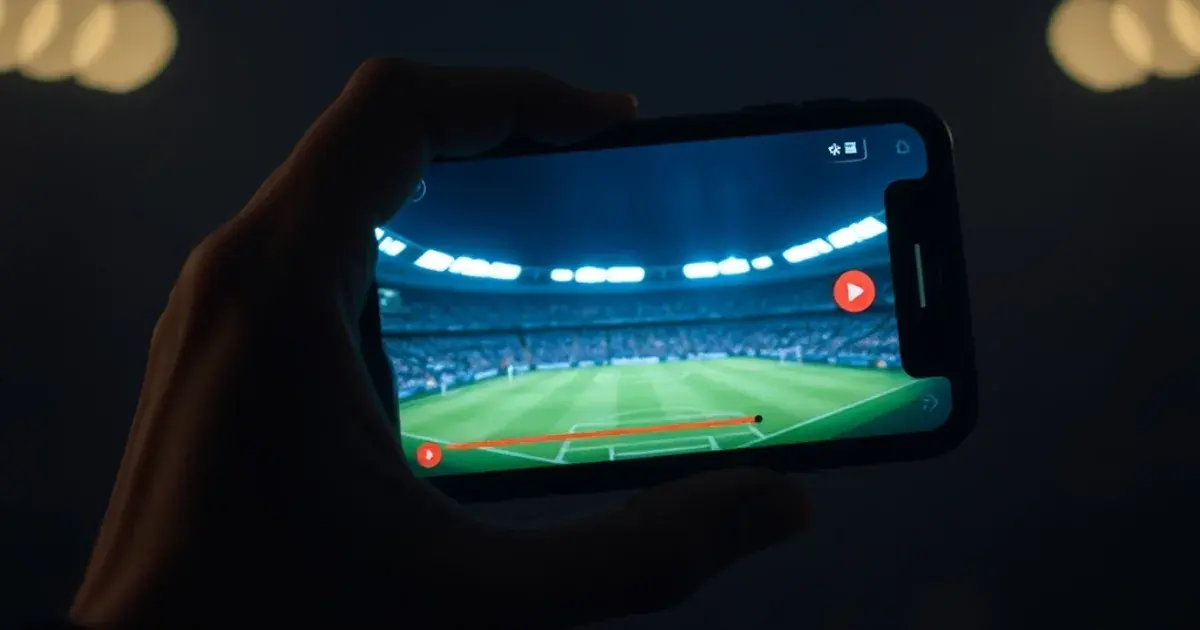
Premier League 2026-27 kicks off on August 21, and if your matchday routine happens on a phone screen rather than a living-room TV, you're not alone — mobile is now the primary way roughly 47% of fans watch live sports, and back-to-school schedules mean more viewing happens on the move than on the couch. iOS 18 and the latest iPhone lineup have also made mobile streaming noticeably smoother, which is exactly why so many people are searching for a reliable way to get IPTV running on iPhone this week.
The good news: setting up Viking IPTV on an iPhone or iPad is genuinely simple once you know which app to pick and how Apple's App Store restrictions affect IPTV apps specifically. This guide walks through the entire journey — from checking your device is ready, to choosing between the two most dependable iOS players, to watching your first live match with minimal buffering.
If you haven't started a subscription yet, read our breakdown of /iptv-free-trial-explained first so you know exactly what to expect before you install anything. Already have credentials in hand? Skip ahead to the app installation section below.
What You Need: iOS Requirements & Viking IPTV Subscription
Before installing anything, confirm two things: your iPhone or iPad is running a reasonably current version of iOS (iOS 15 or later covers the apps recommended below, and iOS 18 devices will run them noticeably more smoothly thanks to improved background media handling), and you have your Viking IPTV login details ready — typically a username and password, or an M3U playlist URL, sent to you after you subscribe or start a trial.
You'll also want a stable connection. Wi-Fi is ideal for home viewing, but 5G or a strong LTE connection works fine for watching on the go — just be aware that streaming HD sports over cellular data consumes several gigabytes per match, so check your data plan if you're not on Wi-Fi.
One thing that trips up first-timers: Apple's App Store guidelines don't allow generic 'IPTV' apps that ship with pre-loaded illegal content, but they do allow neutral IPTV player apps that require you to input your own service credentials or playlist. That's exactly the category Viking IPTV falls into, which is why the setup below uses a third-party player rather than a dedicated Viking IPTV app.
Not sure which app fits your iPhone setup? Ask us directly.
iPhone IPTV Apps: IPTV Smarters Pro vs. GSE Smart IPTV (Which One?)
Two apps dominate the iOS IPTV space, and both work well with Viking IPTV. IPTV Smarters Pro has a cleaner, more modern interface with organized categories for live TV, movies, and series, plus a built-in EPG (electronic program guide) that shows what's airing now and next — useful for flipping between simultaneous matches on a busy football weekend.
GSE Smart IPTV is the more configurable of the two. It supports more playlist formats, gives you finer control over buffering and codec settings, and tends to be the pick of users who've had picture-quality issues on other players. It's slightly less polished visually, but the extra settings menu is where a lot of the buffering fixes in this guide actually live.
Our recommendation: start with IPTV Smarters Pro for its simplicity and EPG, especially if this is your first time using an IPTV player. Switch to or add GSE Smart IPTV if you find yourself fighting buffering during high-demand matches — the deeper settings genuinely help, and there's no harm running both apps side by side with the same credentials.
Installing Your Chosen App from the Apple App Store
Open the App Store on your iPhone, search for either "IPTV Smarters Pro" or "GSE Smart IPTV," and confirm you're downloading the official listing — check the developer name matches (IPTV Smarters Pro is published by IPTV Smarters, GSE Smart IPTV by GSE) and read a few recent reviews to make sure the app hasn't been pulled or replaced since this guide was written.
Tap Get, authenticate with Face ID or your Apple ID password, and let it install. These are lightweight apps, so installation over Wi-Fi typically takes under a minute. No sideloading, no jailbreak, no configuration profiles required — this is a standard App Store install start to finish.
Once installed, open the app and grant any permissions it requests (usually local network access, which it needs to occasionally cast or discover devices — more on that in the AirPlay section below).
Adding Your Viking IPTV Credentials (M3U or Credentials Setup)
On first launch, both apps ask how you want to add a playlist. You'll typically see two options: 'Load your playlist or file URL (M3U URL)' or 'Login with Xtream Codes API' (sometimes labeled username/password). Viking IPTV supports either method — use whichever format was included in your welcome message.
For the M3U method, paste the full playlist URL exactly as provided, give the profile a name (e.g. 'Viking IPTV'), and tap Add. For the Xtream Codes / credentials method, you'll enter a server address along with your username and password. Double-check for trailing spaces or autocorrect changes, since a single mistyped character is the most common cause of a 'connection failed' error at this step.
After saving, the app will sync your channel list and EPG data — this can take anywhere from a few seconds to a couple of minutes depending on your connection and the size of the channel package. Once it finishes, you'll land on the home screen with Live TV, Movies, and Series tabs populated and ready to browse.
Optimizing for Sports: Buffering & Video Settings on Mobile
Live sports are the least forgiving content type for buffering — a two-second stall during a goal is far more noticeable than one during a documentary. A few settings changes make a real difference on iPhone specifically. First, in the app's playback or buffer settings, increase the buffer size slightly above default (most apps default to a low buffer to minimize startup delay, which trades off against stability during high-motion scenes like fast breaks or corner kicks).
Second, if the app offers a choice between hardware and software decoding, hardware decoding uses the iPhone's dedicated video chip and is almost always smoother and more battery-efficient — enable it if it's not already the default.
Third, close other apps running in the background before kickoff. iPhones manage memory aggressively, and a browser with a dozen tabs open competes with your IPTV app for resources. Finally, if you're on Wi-Fi, position yourself within reasonable range of your router — walls and distance degrade throughput more than most people expect, and that shows up first as buffering during fast-moving sports footage rather than static content.
Streaming Your First Live Match (Real Example: Premier League)
With the 2026-27 Premier League season opening August 21, here's the practical flow for watching your first match: open your IPTV app, go to the Live TV tab, and either browse the sports category or use the EPG/search function to find the specific channel carrying your match. Most apps let you favorite channels — star your regular sports channels after your first match so you don't have to search every matchday.
Tap the channel and give it 5-10 seconds to buffer on first load; this initial delay is normal and different from mid-stream buffering. Once playback starts, tap the screen for playback controls, where you can toggle full-screen, check available audio tracks (useful if a channel offers commentary in multiple languages), and access the settings icon covered in the previous section.
If you catch a stream in standard definition when you expected HD, check for a quality/resolution toggle in the player controls — some channels offer multiple quality feeds, and the app may default to a lower one to minimize initial buffering.
AirPlay to Apple TV: Watch on Your TV Using iPhone Stream
If a match kicks off while you're still on your phone but a TV is nearby, AirPlay lets you push the stream to the big screen without switching devices. Make sure your iPhone and Apple TV (or AirPlay-compatible smart TV) are on the same Wi-Fi network, then swipe down from the top-right corner of your iPhone to open Control Center and tap the Screen Mirroring icon.
Select your Apple TV from the list, and your IPTV app's video will appear on the television within a few seconds. Note that AirPlay quality is capped by your Wi-Fi throughput on both ends, so if you were already seeing buffering on your phone, mirroring to a TV won't fix it — it usually makes the issue more visible on a larger screen.
For a setup that's built for the living room from the start rather than mirrored from a phone, our /viking-iptv-firestick-setup-guide and /viking-iptv-smart-tv-setup-guide cover dedicated TV installations that tend to be more stable for regular match-day viewing.
Ready to watch Premier League kickoff on your iPhone without the guesswork?
Troubleshooting: Crashes, Buffering, and Connection Drops
App crashes on launch are almost always fixed by force-closing the app (swipe up and hold, then swipe the app card away) and reopening it, or by checking the App Store for a pending update — IPTV player apps update fairly often to keep pace with iOS changes.
Persistent buffering that doesn't improve after adjusting the settings above usually points to network congestion rather than the app itself: test your connection speed, try switching between Wi-Fi and cellular data to isolate whether the issue is your router or your ISP, and if you're on shared Wi-Fi, check whether other devices are actively downloading or streaming at the same time.
Connection drops mid-match ('server unreachable' type errors) are typically temporary and resolve by re-selecting the channel or restarting the app. If they're frequent, deleting and re-adding your playlist profile refreshes the connection from scratch and clears out any corrupted cache data.
For anything not covered here, our /quick-troubleshooting page has a broader checklist that applies across every device we support, not just iPhone.
Frequently asked questions
Is there an official Viking IPTV app on the App Store?
No — Apple's guidelines don't permit dedicated IPTV apps tied to a specific service. Instead, you use a neutral IPTV player app like IPTV Smarters Pro or GSE Smart IPTV and add your Viking IPTV credentials or M3U playlist inside it. This is the standard, App Store-compliant method used across the industry.
Can I use Viking IPTV on both iPhone and iPad with the same account?
Yes, you can install an IPTV player app on both devices and log in with the same credentials. Whether you can stream on both simultaneously depends on your subscription's connection limit, so check your plan details if you want to watch on two screens at once.
Which app is better for live sports specifically: IPTV Smarters Pro or GSE Smart IPTV?
Both handle live sports well. IPTV Smarters Pro's EPG makes it easier to see what's on and switch between simultaneous matches, while GSE Smart IPTV's deeper buffer and codec settings give you more room to fix picture-quality issues. Many users install both and pick whichever performs better on a given day.
Does streaming IPTV on iPhone use a lot of mobile data?
Yes, live HD sports can use several gigabytes per match over cellular data. If you're not on an unlimited plan, watching on Wi-Fi is strongly recommended, especially for full 90-minute matches.
Why does the picture look worse on iPhone than on my Fire Stick or Smart TV?
This is usually a settings issue rather than a device limitation — check that hardware decoding is enabled and that the channel isn't defaulting to a lower-resolution feed. If you primarily watch at home, our /viking-iptv-firestick-setup-guide and /viking-iptv-smart-tv-setup-guide walk through TV-optimized setups that some users find more consistent for long viewing sessions.
What should I do if the app won't connect at all after entering my credentials?
Double-check for typos or extra spaces in your username, password, or M3U URL, confirm your internet connection is active, and try force-closing and reopening the app. If the issue persists, our /quick-troubleshooting guide covers the most common connection failures step by step.
Read next: the pricing page or the FAQ.