How to Watch Viking IPTV on Mac: Setup & Optimization 2026
September 17, 2026 · 9 min read
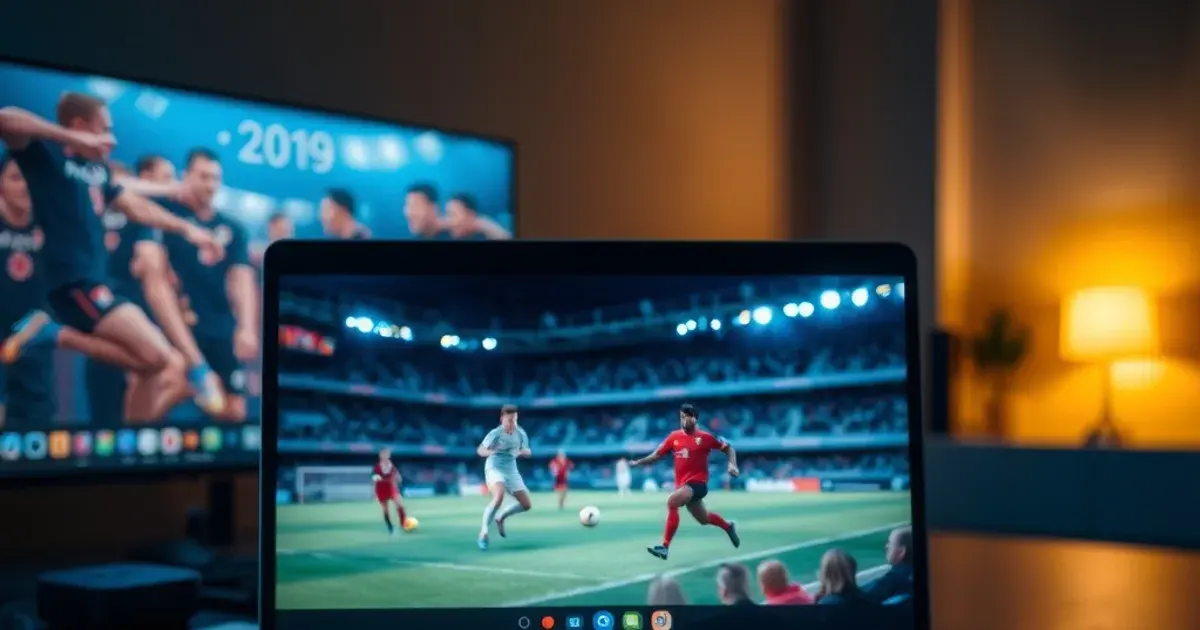
October is the month Mac users finally stop tolerating a shaky stream. NFL Week 7 lands on October 20 with the League's International Series game in London, Champions League Matchday 3 runs October 20-21 across two full slates of European fixtures, and Formula 1's calendar keeps racing through November. If your only IPTV setup so far has been an iPhone screen mirrored awkwardly to a TV, this is the week to do it properly on the machine that's actually sitting on your desk.
Viking IPTV already has guides for iPhone, iPad, Windows, and Apple TV — but nothing dedicated to macOS, and that's a gap worth closing. A Mac isn't just "another device that can run a browser." Apple Silicon changes the math: an M1, M2, or M3 chip decodes H.264 and HEVC streams in dedicated hardware, which means a 4K match can play at a fraction of the CPU load (and battery drain) of an equivalent Intel Mac or a mid-range Windows laptop. That headroom is exactly what lets you run a stream in the background while you work, or keep two matches open side by side without the fan spinning up.
This guide covers the two decisions that actually matter — which player to install and how to tune it for sports — plus the AirPlay path to your TV and the fixes for the crashes and login errors that trip up new Mac users specifically.
Before You Start: Mac Compatibility & Why M1/M2/M3 Macs Are IPTV Powerhouses
Any Mac running a reasonably current version of macOS can play Viking IPTV streams — you don't need the latest hardware. But there's a real, measurable difference between an Intel Mac and an Apple Silicon one when it comes to video decoding. Apple Silicon chips include a dedicated media engine that decodes H.264 and HEVC (H.265) streams without touching the general-purpose CPU cores. In practice, that means the codec most IPTV providers actually stream in gets handled by silicon built for exactly that job.
The practical upshot for sports: on an M1, M2, or M3 Mac, a single 4K stream barely registers on the CPU meter, which is why you can realistically run a stream in a corner of the screen during a workday, or open a second match in a picture-in-picture window, without the laptop heating up or the fan kicking in. On an older Intel Mac, the same stream is decoded in software, which pulls noticeably more power and can start dropping frames under load — especially if you're also running a browser with a dozen tabs.
One more Apple Silicon advantage that matters during a heavy sports weekend: battery efficiency. Because hardware decoding sips power instead of gulping it, an M-series MacBook can realistically stream a full slate of Champions League fixtures on battery, something that would drain an Intel MacBook's battery in well under half the time.
For best results, keep macOS itself reasonably current — Sonoma or newer is a safe baseline for both of the players below — and make sure you're on a stable internet connection before you even open a player. If you're not sure your network is up to the job, our guide on ethernet vs WiFi for IPTV sports streaming (/blog/ethernet-vs-wifi-iptv-sports-streaming) is worth reading first.
Not sure which Mac player fits your setup?
Choose Your Player: IPTV Smarters Pro vs IINA vs VLC (Comparison & Trade-Offs)
Mac users have three realistic options, and competitors' generic guides tend to recommend just one without explaining the trade-off. Here's the honest comparison.
IPTV Smarters Pro is the closest thing to a dedicated IPTV app on Mac: an EPG (program guide), channel categories, favorites, and multi-profile support out of the box. It's cross-platform, so the interface looks and behaves the same as it does on your phone or Apple TV — useful if you switch devices often, but it also means it doesn't feel like a native macOS app. It's the best default choice for most people because it's built specifically for M3U/Xtream IPTV playback and handles playlist parsing and channel switching more gracefully than a general-purpose video player.
IINA is a free, open-source video player built specifically for macOS, using Apple's native AVFoundation and hardware decoding under the hood. It has a clean, native macOS interface — proper trackpad gestures, a menu bar that feels like it belongs, and tight AirPlay integration. The trade-off is that IINA isn't IPTV-specific: it plays a network stream URL beautifully, but you won't get an EPG, favorites list, or channel guide — you're managing playlists manually, which suits people who want a minimal, fast player for a handful of favorite channels rather than browsing hundreds of them.
VLC is the universal fallback: free, extremely reliable at decoding almost any stream format, and available on every platform. It doesn't have IPTV-friendly extras like Smarters Pro, and its interface is more utilitarian than IINA's, but when a stream won't play anywhere else, VLC is usually the one that gets it working. Keep it installed as a backup even if Smarters Pro or IINA is your daily player.
Our recommendation: install IPTV Smarters Pro as your main app for day-to-day browsing and EPG access, keep VLC on standby for troubleshooting stubborn streams, and try IINA if you mainly watch a short list of favorite channels and want the most native, polished macOS experience.
Install IPTV Smarters Pro from the Mac App Store (5-Minute Setup)
Open the Mac App Store, search for "IPTV Smarters Pro," and install it — it's a free download. If your Mac's App Store region doesn't list it, the developer also distributes a direct macOS build from the official IPTV Smarters website, which works identically.
On first launch, macOS Gatekeeper may prompt you to confirm you want to open an app downloaded from the internet (this only applies to the direct-download version, not the App Store one). Go to System Settings → Privacy & Security and click "Open Anyway" if prompted — this is a standard macOS security check, not a sign of anything wrong with the app.
Once it opens, you'll land on a login screen asking for either a Xtream Codes API (username, password, server URL) or an M3U playlist URL. If this is your very first time getting these details from Viking IPTV, our general onboarding guide (/blog/how-to-watch-viking-iptv-first-time-setup) walks through where to find your credentials before you get to this screen.
Add Your Credentials: M3U Playlist or Xtream Codes Setup on Mac
In IPTV Smarters Pro, tap "Login with Xtream Codes API" if you have a username, password, and server URL — this is the more reliable option because it lets the app pull the EPG and channel categories directly, rather than parsing a static file. Enter the three fields exactly as given, including the full server URL with the port number if one was provided; a missing or mistyped port is the single most common reason a login fails on the first try.
If you were given an M3U link instead, choose "Load your playlist or file URL (M3U URL)" and paste the link in. Give the profile a name so you can find it again later if you ever add a second one.
On IINA or VLC, there's no login screen — you open the M3U URL directly as a network stream (File → Open URL in both apps). This works fine for quick access to a handful of channels, but you lose the EPG and category browsing that Smarters Pro provides, which is the core trade-off discussed above.
Whichever method you use, give the app a minute after you hit connect — the first load parses the entire channel list and EPG, and on a large playlist that initial parse can take longer than switching channels afterward will.
Optimize for 4K Sports: Network, Buffer Size & Quality Settings on macOS
For a 90-minute match, a full grand prix, or a four-hour NFL broadcast, buffering mid-play is the thing that actually ruins the experience — not resolution. In IPTV Smarters Pro, go to Settings → Player and increase the buffering size from its default. A larger buffer means a few extra seconds of delay before playback starts, but it gives the app a bigger cushion to absorb brief network dips without stuttering — worth the trade during a live match where a dropped frame at the wrong second is more annoying than a slightly later kickoff.
Also check the player engine setting. Smarters Pro lets you choose between its built-in player and, on some builds, an alternate decoder — if you notice dropped frames specifically on 4K channels, switching engines is often a faster fix than changing anything on the network side.
In IINA, open Preferences → Video and confirm hardware decoding is enabled (it is by default on Apple Silicon, but it's worth a quick check after any macOS update, since some updates have reset custom preferences). IINA also lets you cap the cache size manually under Preferences → Network — for 4K sports, err on the larger side rather than the smaller one.
For the full guide on matching resolution, bitrate expectations, and general 4K playback settings for a big match, see /blog/4k-iptv-setup-premier-league-2026-guide. And regardless of which player you use, close bandwidth-heavy background apps (cloud backup syncs, large downloads) before a match starts — Apple Silicon handles the decoding, but it still shares your internet connection with everything else running.
Stream to Apple TV via AirPlay: Watch on Your TV from Mac
If you'd rather watch on the big screen, macOS's built-in AirPlay makes it simple to send a Mac stream to an Apple TV without any extra software. Make sure both devices are on the same WiFi network (or, better, your Mac is on ethernet and the Apple TV is on the same LAN), then click the Control Center icon in the menu bar and select Screen Mirroring, then choose your Apple TV.
IINA has a small edge here: its playback window supports AirPlay output directly from the player's own controls, so you can send just the video stream rather than mirroring your entire desktop — cleaner, and it avoids exposing menu bar notifications or other windows on the TV. In IPTV Smarters Pro and VLC, use the system-level Screen Mirroring instead, since neither has built-in AirPlay output.
One practical note: full-screen mirroring adds a small amount of latency compared to a native Apple TV app, which matters more for something like a penalty shootout than a recorded match. If you watch live sports on the TV often, our dedicated best-apps roundup for live football (/blog/best-iptv-apps-live-sports-2026-football) covers the direct Apple TV app path as an alternative to mirroring from a Mac.
Troubleshooting: Crashes on Launch, Buffering, & Login Issues on Mac
App crashes on launch, right after opening: this is usually a Gatekeeper or permissions conflict, not a broken install. Quit the app fully (Cmd+Q, then confirm it's not still running in Activity Monitor), delete it, and reinstall from the Mac App Store rather than a direct download — App Store builds are signed and notarized, which avoids most of the launch-crash reports we've seen from sideloaded macOS IPTV apps.
Login accepted but no channels load: double-check the server URL includes the correct port number, and confirm there's no trailing space pasted in from copying the credentials. If the Xtream login keeps failing, try the M3U URL method instead as a quick way to isolate whether the issue is your credentials or the app itself.
Playback starts then freezes after a few seconds: this is almost always a network issue, not the app. Test the same stream on your phone over the same WiFi network — if it also stutters there, the problem is your connection, not macOS. If your phone plays it smoothly and your Mac doesn't, check that no VPN or firewall software on the Mac is throttling the connection.
Video plays but there's no sound: check System Settings → Sound and make sure the correct output device is selected — this trips up more people than you'd expect right after connecting an Apple TV or external display via AirPlay, since macOS sometimes switches the default output device automatically.
Ready to stream this weekend's matches in 4K on your Mac?
Why Ethernet Beats WiFi on Mac (Even with Strong Signal)
Modern Macs — even the compact ones — don't have a built-in ethernet port, which pushes most people toward WiFi by default. For everyday browsing that's fine. For a live 4K match, it's the single most common cause of mid-game buffering we hear about from Mac users, even when the WiFi signal bars show full strength.
The issue isn't signal strength, it's consistency. WiFi is a shared, half-duplex medium — every device on the network, plus your neighbors' networks on the same channel, competes for airtime, which produces exactly the kind of brief, random latency spikes that stutter a live stream even when average speed looks fine on a speed test. A wired connection doesn't have that contention.
If your Mac doesn't have an ethernet port, a USB-C to ethernet adapter is a small, one-time purchase that solves this permanently — plug it in and macOS will automatically prefer the wired connection over WiFi. For the full technical breakdown of why this matters specifically for live sports (versus, say, streaming a downloaded movie), see /blog/ethernet-vs-wifi-iptv-sports-streaming.
Frequently asked questions
Do I need a specific macOS version to run IPTV Smarters Pro or IINA?
Both apps support recent versions of macOS. Keeping your system updated to a current release (Sonoma or newer is a safe baseline) ensures you get the latest hardware-decoding improvements Apple ships with each macOS update, which directly affects streaming smoothness.
Is an Intel Mac too old to use for Viking IPTV?
No — Intel Macs work fine for standard and HD streams. The difference shows up specifically with demanding 4K content, where Apple Silicon's dedicated hardware decoder gives noticeably smoother playback and lower fan noise and power draw than software decoding on an Intel chip.
Can I use Viking IPTV in a browser on Mac instead of installing an app?
Some M3U links can be played through browser-based players, but you lose the EPG, channel categories, and stability that a dedicated app like IPTV Smarters Pro or IINA provides. For live sports specifically, a native player is the more reliable choice.
Why does my stream buffer on Mac even though my internet speed test looks fine?
A speed test measures average throughput, not consistency. WiFi introduces brief latency spikes from network contention that a speed test won't catch but a live stream will. This is the main reason ethernet outperforms WiFi for live sports even when both show similar speed-test numbers.
Which player should I use if I only watch a few favorite channels?
IINA is a good fit — its native macOS interface and direct AirPlay support make it fast for a short, fixed list of channels, even though it lacks the full EPG and category browsing that IPTV Smarters Pro offers for larger channel lists.
Can I watch on my Mac and cast to my Apple TV at the same time as another device?
Yes — Viking IPTV playback on a Mac (or AirPlayed to an Apple TV) is independent of what's playing on your phone, iPad, or Windows PC, as long as each device is signed in with its own session according to your plan's device allowance.
Read next: the pricing page or the FAQ.