4K IPTV Setup for Premier League: Network to Player Optimization
August 20, 2026 · 9 min read
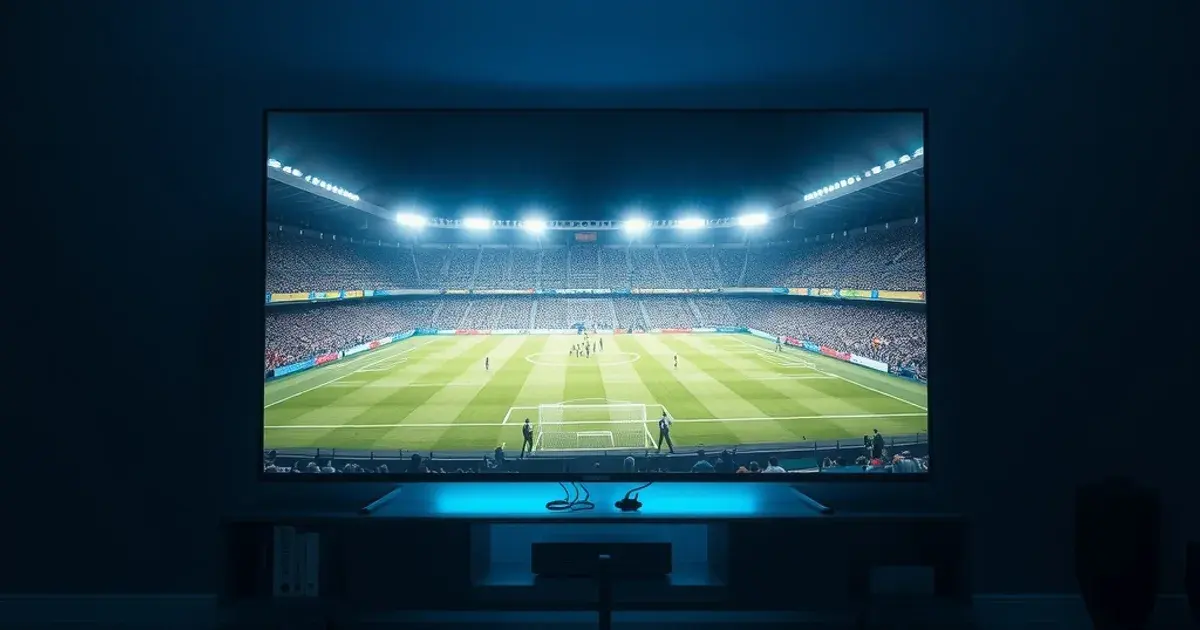
The Premier League 2026-27 season kicks off on Friday, August 21, 2026, with defending champion Arsenal hosting newly promoted Coventry City at the Emirates — and for a growing share of viewers, this is the first season they're watching in 4K. Market surveys now put 4K support among the top six factors IPTV subscribers weigh before buying a service, right alongside channel reliability and price. It's no longer a luxury tier — it's an expectation.
The problem is that most '4K streaming' guides online are generic Netflix-style checklists: check your Wi-Fi, check your TV settings, done. They don't touch the parts that actually break 4K IPTV during a live match — the codec your player decodes, the buffer size that determines whether a VAR review causes a freeze, or what happens to your stream quality when three other rooms in the house are also watching kickoff. This guide walks the full chain, from your router to the pixels on screen, with the live-sports timing pressure built in.
If you've already read our piece on stream quality settings, treat this as the deeper, end-to-end version — network diagnostics, device configuration, codec choice, player tuning, troubleshooting, and multi-room limits, all in one place.
Why 4K Actually Matters for Live Football
4K's value in football isn't abstract sharpness — it's specific to what the camera captures. Wide tactical shots that show full-pitch shape, the ball's exact position relative to the last defender on a tight offside call, shirt-number legibility from the far side of the pitch, and grass-level detail during replays all benefit directly from the extra resolution. At 1080p, a lot of that information compresses into noise the moment the camera pulls back for a wide angle — which is exactly when close matches are decided.
The other benefit is motion handling. Football is one of the hardest content types to stream because of fast horizontal camera pans following the ball and sudden bursts of movement around the box. Higher resolution paired with a properly configured frame rate reduces the smearing and blocking that shows up during those moments — the difference between a clean instant replay and a blurry one.
None of this matters if the chain feeding your screen — network, box, decoder, player — has a weak link. That's what the rest of this guide fixes, in order.
Not sure if your current setup can actually push 4K for kickoff?
Network Requirements: Bandwidth, Wiring, and ISP Throttling
A stable 4K IPTV stream generally needs sustained throughput in the 50+ Mbps range on the connection actually feeding your streaming device — not your plan's advertised headline speed, which is a shared ceiling, not a guarantee. Run a speed test on the device itself, during the time slot you'll actually be watching (Saturday 3pm kickoffs load ISPs harder than a Tuesday evening), not just once in the morning.
Ethernet beats Wi-Fi for 4K IPTV, and the reason is consistency, not raw speed. Wi-Fi can post a fast speed-test number and still drop packets under sustained real-time load, especially on 2.4GHz bands shared with neighbors' networks. If your IPTV box or Fire TV stick is more than a few feet from the router, run a cable — a real Cat5e/Cat6 run outperforms a good 5GHz connection for the sustained, low-jitter throughput that live 4K needs. For a deeper comparison of wired versus wireless specifically for match-day streaming, see our dedicated guide: /blog/ethernet-vs-wifi-iptv-sports-streaming.
If you've confirmed enough raw bandwidth but still see it evaporate specifically on IPTV traffic, ask whether your ISP is shaping streaming or VPN-style traffic during peak hours — some do, particularly in the evening. A VPN can sometimes route around this kind of shaping, though it adds its own overhead, so test with and without one active before assuming it's the fix. If buffering only strikes during marquee matches, our troubleshooting piece on stop-buffering-during-big-matches (/blog/stop-buffering-during-big-matches-live-events) covers the live-event-specific causes in more depth.
Fire TV and Smart TV 4K Configuration
Getting a 4K-capable device and a 4K stream doesn't guarantee a 4K picture — the device's output settings have to actually request it. On Fire TV, go into Settings > Display & Sounds > Display and confirm the resolution is set to Auto Adjust Display Refresh Rate on, with the video resolution capped at 4K UHD rather than locked to 1080p (a common default after a firmware update resets preferences).
Hardware decoding is the setting most people never touch and most need. Software decoding — where the CPU rather than a dedicated chip handles the video — is what causes stutter and frame drops on lower-end sticks trying to push 4K. In most IPTV player apps there's a decoder option (often labeled hardware/HW vs. software/SW); hardware should be the default unless you're specifically troubleshooting a codec compatibility issue.
Frame rate matching matters more for football than for film. If your player and TV support 'Match Original Frame Rate' or a similar setting, enable it — it prevents the device from forcing every stream to a fixed 60Hz output, which can introduce judder on camera pans. If you're setting up a Fire TV stick specifically for Viking IPTV, our step-by-step walkthrough covers the exact menus: /blog/viking-iptv-firestick-setup-guide.
Codec Showdown: H.265 (HEVC) vs. H.264
The codec a stream is encoded with determines how much bitrate is needed for a given picture quality, and it's the single most overlooked lever in IPTV 4K performance. H.265 (HEVC) compresses roughly twice as efficiently as the older H.264 — meaning a 4K H.265 stream can look comparable to a 4K H.264 stream while consuming noticeably less bandwidth. On a connection that's borderline for 4K, that difference is often what separates a clean picture from constant re-buffering.
The tradeoff is decoding hardware. H.265 requires more processing power to decode in real time, so older streaming boxes and budget Android TV sticks without dedicated HEVC decoding hardware will struggle or fall back to software decoding — which brings back the stutter problem from the previous section. Most devices sold since roughly 2019-2020 handle H.265 natively, but it's worth confirming in your device's spec sheet if you're on older hardware.
Not every IPTV player app handles both codecs equally well even when the hardware supports them. If you're deciding between an M3U-based player and an Xtream Codes-based app, codec handling is one of the practical differences worth knowing before you commit — our comparison breaks down exactly where each approach helps or hurts 4K playback: /blog/xtream-codes-vs-m3u-firestick-guide.
IPTV Player Configuration: Buffer Size and EPG Performance
Buffer size is a direct tradeoff between startup delay and resilience to network hiccups. A small buffer starts playback almost instantly but has no cushion when a packet arrives late — the picture freezes immediately. A larger buffer takes a couple of extra seconds to fill on channel change but absorbs brief network dips without you noticing. For 4K specifically, err toward a larger buffer than you'd use for 1080p, since 4K streams have less margin for error at the higher bitrate.
Most IPTV player apps expose this as a numeric setting, often labeled buffer size or cache size, sometimes in seconds and sometimes in megabytes. There's no universal 'correct' number — it depends on your connection's stability — but if you're seeing brief freezes rather than sustained buffering, increasing this setting incrementally is the first thing to try before touching anything else.
EPG (electronic program guide) loading can also drag down perceived performance, especially on players juggling a large channel list. A bloated or slow-refreshing EPG doesn't affect stream quality directly, but it does affect how quickly you can find and switch to the match you want — worth trimming down to the channel groups you actually use if your app supports custom categories.
Troubleshooting 4K Buffering, Frame Drops, and Quality Downgrade
Frame drops during fast camera pans usually point to decoding, not bandwidth — if the network is fine but motion still looks choppy, revisit the hardware decoding setting from the Fire TV section above before assuming it's a connection issue.
Stuttering that appears specifically in the first few minutes after kickoff, then settles, often reflects a wider network-wide surge — millions of viewers hitting streaming infrastructure at the same moment a match starts. This is largely outside your control on the source side, but a larger local buffer (previous section) smooths over it on your end.
Quality that visibly downgrades mid-match — the picture going softer or more compressed without you changing anything — usually means either your local connection degraded (worth an immediate speed test) or the upstream feed adapted to congestion. If it happens consistently during the same weekly time slot, that's a strong signal of ISP-level peak-hour congestion rather than a one-off fluke, which loops back to the throttling checks covered earlier in this guide.
Get a 4K-ready IPTV plan built for the Premier League season ahead.
Multi-Room 4K: Simultaneous Streams and Connection Limits
Running 4K on more than one TV at the same time multiplies your bandwidth requirement directly — two simultaneous 4K streams need roughly double the sustained throughput of one, which is where a lot of households that tested fine with a single device hit trouble on a full match day with every room switched on.
Your router matters here as much as your raw internet speed. A router struggling to manage multiple simultaneous high-bitrate streams can introduce jitter even when total bandwidth is technically sufficient — Quality of Service (QoS) settings, where available, can prioritize streaming traffic over background downloads or updates competing for the same pipe.
If your household regularly has more than one room watching different matches at once, plan the wired connections accordingly rather than treating Wi-Fi as a fallback for the second and third TVs — those are exactly the streams most likely to degrade first. Our full walkthrough on setting up reliable multi-room IPTV, including how to think about concurrent connection limits, is here: /blog/iptv-multi-room-family-setup-guide.
Frequently asked questions
Do I need exactly 50 Mbps for 4K IPTV, or is that a minimum?
Treat 50 Mbps as a practical floor for one stable 4K stream, not a target to hit exactly. Real-world overhead — network noise, other devices on the connection, ISP peak-hour congestion — means a connection that tests at exactly 50 Mbps can still struggle during a high-demand kickoff. More headroom above that floor gives you more resilience, especially if anyone else in the house is online during the match.
Why does my stream look 4K in the app but not actually sharper on screen?
This usually traces back to the device's output resolution setting being capped below 4K, or hardware decoding being disabled so the device is downscaling to keep up. Check both the Fire TV/Smart TV display settings and the player app's decoder setting — a 4K source feed doesn't help if either link in that chain isn't actually passing 4K through.
Is Wi-Fi ever good enough for 4K IPTV, or is ethernet mandatory?
A strong, uncongested 5GHz connection close to the router can handle 4K IPTV reasonably well. It's not that Wi-Fi can't do it — it's that Wi-Fi's real-world consistency is harder to guarantee than a wired connection, especially in busy households or apartment buildings with lots of overlapping networks. Ethernet removes that variable entirely.
H.265 or H.264 — which should I actually pick if my player lets me choose?
If your device has hardware HEVC decoding (most models from the last several years do), H.265 is the better choice for 4K because it needs less bandwidth for the same quality. If you're on an older box without confirmed HEVC hardware support, H.264 will be more reliable even though it needs more bandwidth to look as good.
Will 4K IPTV work for watching two different Premier League matches in two rooms at once?
It can, but plan for it explicitly rather than assuming your existing single-stream setup scales. You'll need close to double the sustained bandwidth, and ideally both TVs on wired connections rather than relying on Wi-Fi for the second stream, which is the one most likely to buffer first under load.
Read next: the pricing page or the FAQ.